Difference between revisions of "MCM-iMX93: Evaluation Kit: Getting Started"
(Created page with "__NOTOC__ frameless|top|1300px|link= == System setup == MCM-iMX93 evaluation kit is preloaded with the MCM-iMX93 Yocto Linux ima...") |
|||
| Line 18: | Line 18: | ||
# Toggle the main power switch '''SW1''' to '''ON''' position. | # Toggle the main power switch '''SW1''' to '''ON''' position. | ||
# Follow the messages in your terminal emulator program until you see the linux shell command line prompt. | # Follow the messages in your terminal emulator program until you see the linux shell command line prompt. | ||
| + | # Use the superuser credentials to log in: | ||
| + | :: user: root<br> | ||
| + | :: pass: no password | ||
{{note|In case no messages appear in your terminal emulation program, please refer to the detailed [[SB-UCM-iMX8: HOWTO: USB Console|USB console]] guide.}} | {{note|In case no messages appear in your terminal emulation program, please refer to the detailed [[SB-UCM-iMX8: HOWTO: USB Console|USB console]] guide.}} | ||
== What's Next? == | == What's Next? == | ||
| + | * [[MCM-iMX93 NXP iMX93 Linux Resources|MCM-iMX93 Linux resources]] | ||
* [[MCM-iMX93: Evaluation Kit: Hardware Guide|MCM-iMX93 evaluation kit hardware guide]] | * [[MCM-iMX93: Evaluation Kit: Hardware Guide|MCM-iMX93 evaluation kit hardware guide]] | ||
* [https://www.compulab.com/products/computer-on-modules/mcm-imx93-nxp-i-mx-93-som-smd-system-on-module/#devres MCM-iMX93 development resources] | * [https://www.compulab.com/products/computer-on-modules/mcm-imx93-nxp-i-mx-93-som-smd-system-on-module/#devres MCM-iMX93 development resources] | ||
[[Category:MCM-iMX93]] | [[Category:MCM-iMX93]] | ||
Latest revision as of 17:04, 28 January 2026
System setup
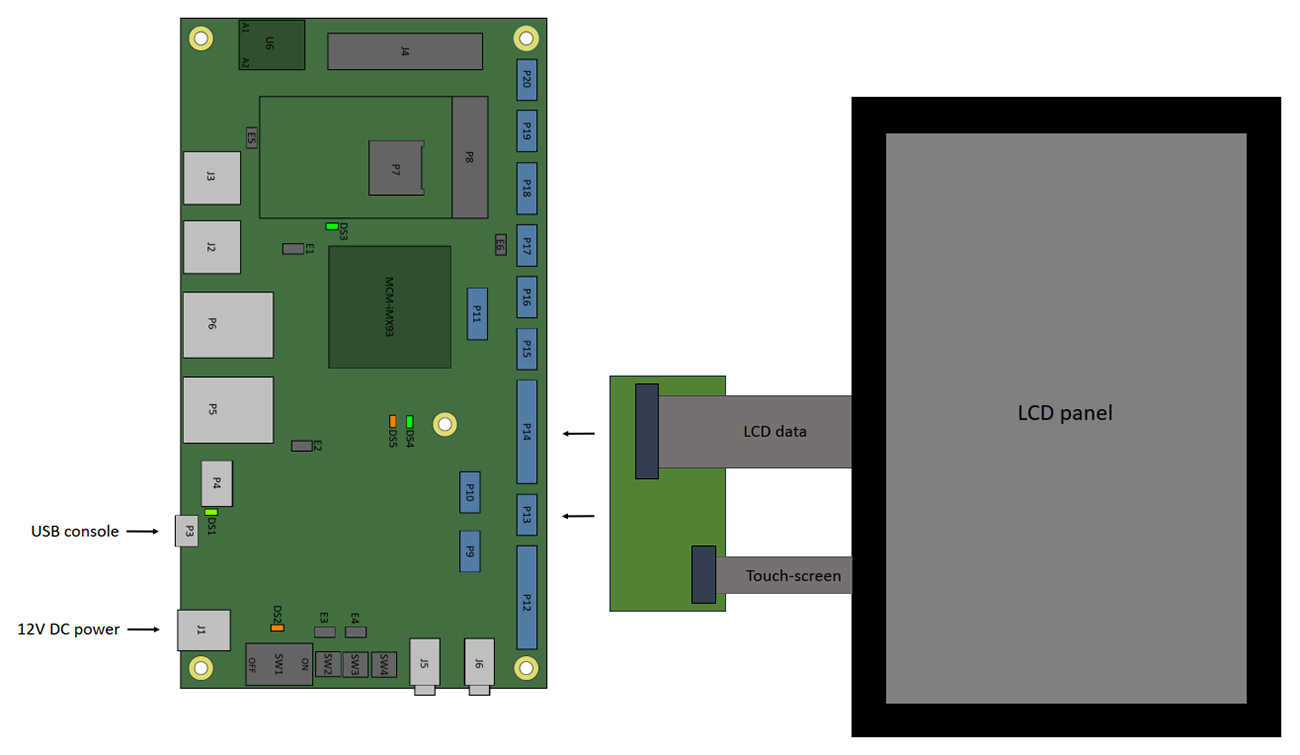
MCM-iMX93 evaluation kit is preloaded with the MCM-iMX93 Yocto Linux image.
- Make sure jumper E5 is populated (default state).
- Make sure jumpers E3 and E4 are not populated (default state).
- Make sure that main power switch SW1 is in the OFF position.
- Optional - use the EB-HDRLVDS adapter to connect the LCD panel (if ordered with the kit) to connectors P13 and P14.
- Connect a standard USB cable (included in the kit) between your host PC and the evaluation kit console connector P3.
- On your computer, start a terminal emulation program (such as PuTTY on Windows or minicom on Linux) with the following serial port settings:
Baud Rate Data Bits Stop Bits Parity Flow Control 115200 8 1 none none
Starting the system
- Connect the DC 12V power supply adapter (included) to main DC power jack J1.
- Toggle the main power switch SW1 to ON position.
- Follow the messages in your terminal emulator program until you see the linux shell command line prompt.
- Use the superuser credentials to log in:
- user: root
- pass: no password
- user: root

|
In case no messages appear in your terminal emulation program, please refer to the detailed USB console guide. |

