Difference between revisions of "UCM-iMX93: Evaluation Kit: Getting Started"
| (2 intermediate revisions by the same user not shown) | |||
| Line 1: | Line 1: | ||
| − | [[Image:UCM-iMX93-eval-kit-quick-setup.png|frameless|top| | + | __NOTOC__ |
| + | [[Image:UCM-iMX93-eval-kit-quick-setup.png|frameless|top|1600px|link=]] | ||
== Package content == | == Package content == | ||
| − | [https://www.compulab.com/wp-content/uploads/2023/ | + | [https://www.compulab.com/wp-content/uploads/2023/07/ucm-imx93_eval-kit-content.pdf Package content list] |
== System setup == | == System setup == | ||
| Line 9: | Line 10: | ||
# Make sure jumper '''E9''' is populated (default state). | # Make sure jumper '''E9''' is populated (default state). | ||
# Make sure jumpers '''E2''' and '''E7''' are not populated (default state). | # Make sure jumpers '''E2''' and '''E7''' are not populated (default state). | ||
| − | # | + | # Optional - connect the LCD panel (if ordered with the kit) to connectors '''P7''' and '''P8'''. Ensure that the flat cables are fully inserted. |
# Connect a standard USB cable (included in the kit) between your host PC and the evaluation kit micro-USB2.0 connector '''P16'''. | # Connect a standard USB cable (included in the kit) between your host PC and the evaluation kit micro-USB2.0 connector '''P16'''. | ||
# On your computer, start a terminal emulation program (such as Tera Term or PuTTy) with the following serial port settings: | # On your computer, start a terminal emulation program (such as Tera Term or PuTTy) with the following serial port settings: | ||
| Line 18: | Line 19: | ||
== Starting the system == | == Starting the system == | ||
# Connect the DC 12V power supply adapter (included) to main DC power connector '''J4'''. | # Connect the DC 12V power supply adapter (included) to main DC power connector '''J4'''. | ||
| − | # Follow the messages in your terminal emulator program until you see the linux shell command line prompt. | + | # Follow the messages in your terminal emulator program until you see the linux shell command line prompt. |
| + | # Use the superuser credentials to log in: | ||
| + | :: user: root<br> | ||
| + | :: pass: no password | ||
{{note|In case no messages appear in your terminal emulation program, please refer to the detailed [[SB-UCM-iMX8: HOWTO: USB Console|USB console]] guide.}} | {{note|In case no messages appear in your terminal emulation program, please refer to the detailed [[SB-UCM-iMX8: HOWTO: USB Console|USB console]] guide.}} | ||
Latest revision as of 17:05, 28 January 2026
Package content
System setup
UCM-iMX93 evaluation kit is preloaded with the UCM-iMX93 Yocto Linux image.
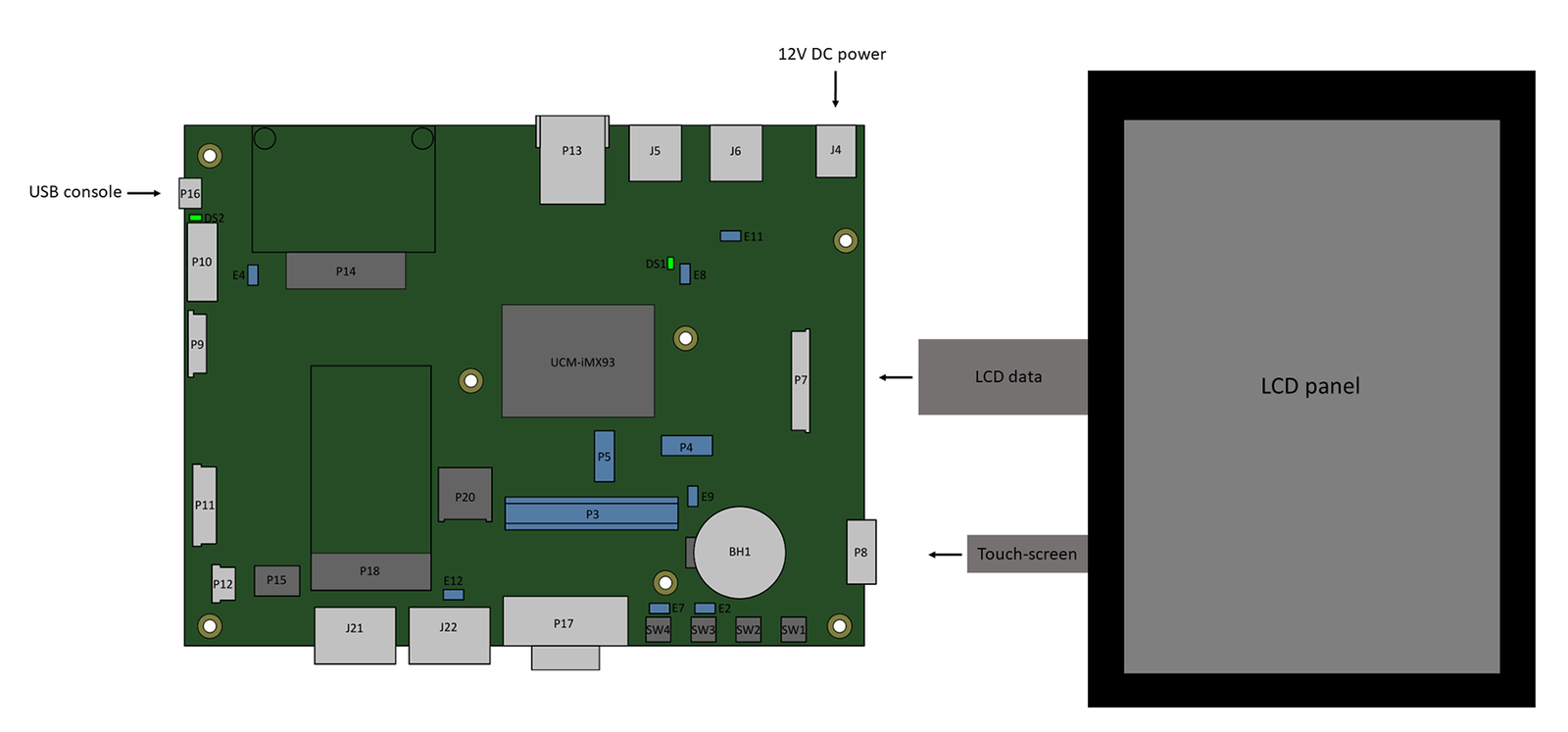
- Make sure jumper E9 is populated (default state).
- Make sure jumpers E2 and E7 are not populated (default state).
- Optional - connect the LCD panel (if ordered with the kit) to connectors P7 and P8. Ensure that the flat cables are fully inserted.
- Connect a standard USB cable (included in the kit) between your host PC and the evaluation kit micro-USB2.0 connector P16.
- On your computer, start a terminal emulation program (such as Tera Term or PuTTy) with the following serial port settings:
Baud Rate Data Bits Stop Bits Parity Flow Control 115200 8 1 none none
Starting the system
- Connect the DC 12V power supply adapter (included) to main DC power connector J4.
- Follow the messages in your terminal emulator program until you see the linux shell command line prompt.
- Use the superuser credentials to log in:
- user: root
- pass: no password
- user: root

|
In case no messages appear in your terminal emulation program, please refer to the detailed USB console guide. |
